
Table of Contents
Fire TV Vega OS IPTV Apps in 2026: What Works and What Does Not
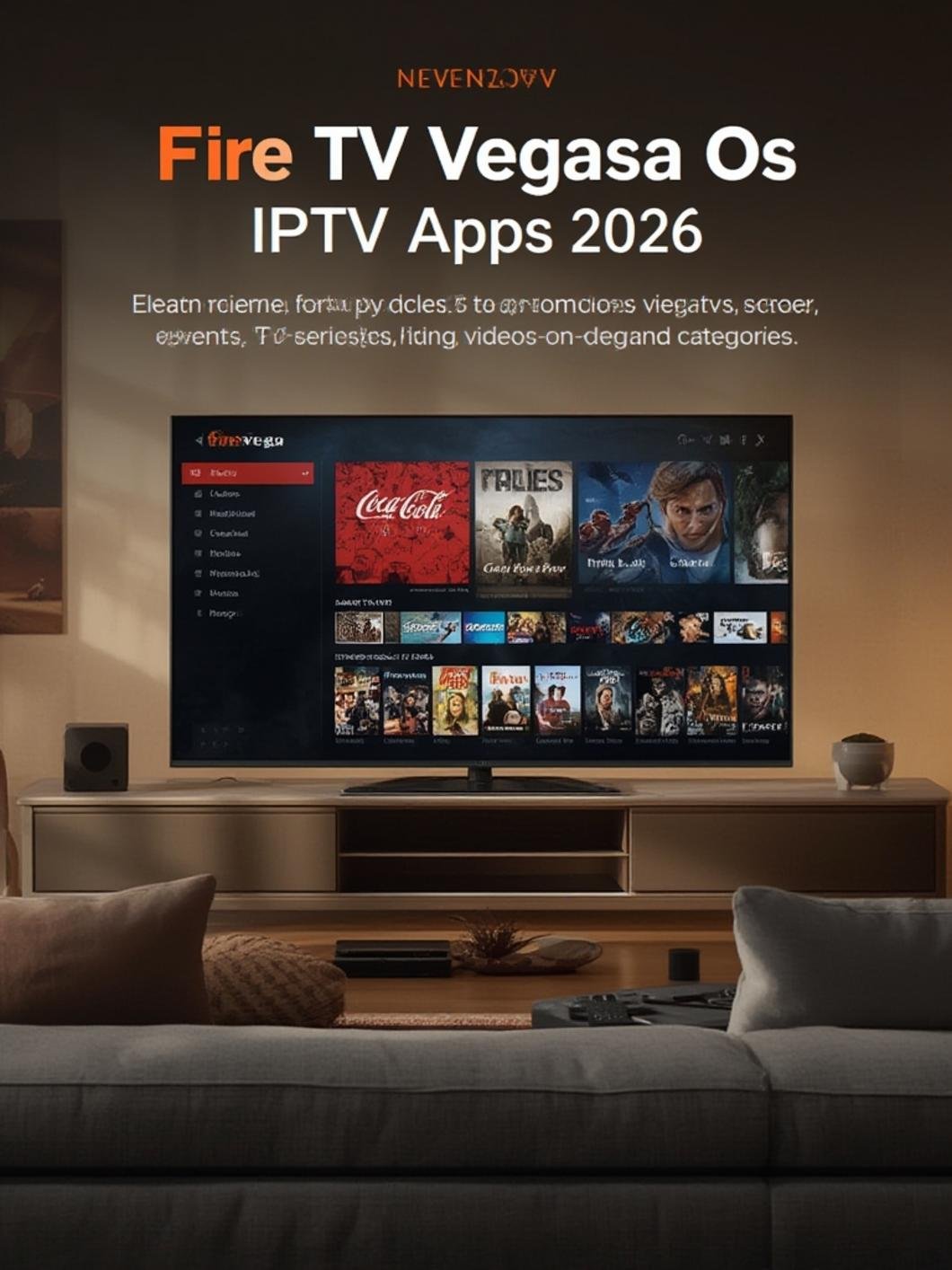
Many users encounter a streaming app that worked on an older Fire TV Stick but refuses to install on a newer device. The problem stems from changes in Fire TV Vega OS IPTV apps 2026 that tighten app verification and regional licensing. In short, you can only install apps that Amazon has certified for the specific Vega OS version and region.
Fire TV Vega OS IPTV Apps 2026: Compatibility Explained
Yes, here’s what you need to know about compatibility on Fire TV Vega OS in 2026. The new OS enforces stricter digital rights management, which means many previously functional third‑party IPTV clients are no longer listed in Amazon’s catalog. You will see a “Not available for this device” message unless the developer has submitted an updated package signed with Amazon’s latest keys.
Vega OS also introduces region‑locked licensing. An app approved for the U.S. store will not appear in the Canadian or U.K. stores, even if the same device model is used. This creates a situation where the same hardware can support different app sets based solely on the buyer’s geographic location.
What Is Vega OS and How Does It Differ From Fire OS?
Vega OS is Amazon’s next‑generation firmware that replaces the legacy Fire OS, introducing stricter app gates and new regional controls. Unlike Fire OS, which allowed side‑loading from unknown sources with minimal checks, Vega OS requires all third‑party IPTV solutions to be published through Amazon’s official app marketplace. The underlying Android base remains similar, but Google Play Services are stripped out, and Amazon’s custom services manage authentication.
Another difference lies in update frequency. Fire OS followed a yearly major release cycle, while Vega OS pushes quarterly patches. These frequent updates can abruptly remove previously functional apps if they do not meet new security criteria. Users must stay aware of the current OS build number to avoid compatibility surprises.
Why Android IPTV APKs May Not Work
Because Vega OS limits side‑loading, most Android IPTV APKs no longer install automatically. Amazon disabled the “Unknown Sources” option by default, and the system now validates each package against a hardware‑bound certificate. Even if you manage to locate an APK, the device will display a warning that the app is “not verified for this device.”
Furthermore, Vega OS enforces Google Play Protect scans on any app that claims IPTV functionality. If the scanner detects missing Widevine DRM components or unrecognized permissions, installation is blocked. This intentional friction protects users from pirated streams but also prevents legitimate indie players from reaching the market without Amazon’s approval.
How to Find Officially Supported Streaming Apps
Start with the Amazon app store and look for Vega OS supported IPTV players that carry an official developer badge. When you search, filter by “Fire TV” and check the version numbers to ensure they match your device’s OS build. Always read the description for a statement like “compatible with Fire TV Cube (4th gen) and newer models.”
Below is a quick reference table you can use while browsing the store:
App requirementHow to verify supportPossible limitationLegal alternativeAmazon Prime VideoCheck Amazon Appstore listing for “Fire TV Vega OS” compatibilityMay require separate subscriptionFree ad‑supported content on Amazon’s own channelHulu (U.S.)Look for region‑specific label in app storeGeographic lock if outside U.S.Local broadcast TV apps where availableNetflixVerify app version matches your OS buildNo limitation for supported regionsDownload the official Netflix app from the storeIPTV player listing (e.g., “VLC for Fire TV”Search “Vega OS supported IPTV players” and confirm developer’s official websiteMay lack live‑TV guide featuresUse Amazon’s built‑in video player for supported content
Always cross‑reference the developer’s official website to confirm that the app has been updated for Vega OS. If the listing mentions “requires Fire OS 7 or earlier,” it will not work on Vega OS.
Which Legal Live TV Services Can You Use?
You can access Amazon Prime Video, Netflix, Hulu, and any provider whose app appears in the Vega OS store. These services have negotiated direct distribution agreements with Amazon, guaranteeing that their software receives the necessary certificates for installation.
Regional licensing often restricts which live TV packages are visible. For example, a user in Canada will see Rogers Sportsnet or Bell TV in the store, while a U.S. user will not. The same hardware can therefore support completely different channel line‑ups based solely on the country’s Amazon storefront.
If you prefer free over‑the‑air content, Amazon’s “Live TV” channel on the device offers a curated selection of local broadcast stations. This built‑in app requires no separate download and works out of the box on every Vega OS model.
How to Verify an IPTV Player Before Installing
Always confirm that the IPTV player is verified by Amazon before you tap Install. Begin by opening the Amazon Appstore on your Fire TV Vega OS device. Search for the player’s name and look for a green “Verified” badge next to the title.
Next, examine the developer information. Legitimate apps list a real company name, a contact email, and often a link to a website. Check that website for an “Official Fire TV App” section. Read recent user reviews for comments about installation issues or missing features. Finally, ensure the app’s version number includes the word “Vega OS” in its description.
If any of these checks fail, it is safest to skip the installation and choose an officially listed alternative. Remember that a missing update or a low rating can indicate that the developer no longer supports the current OS version.
Common Installation and Compatibility Problems
The most frequent issues are version mismatches, region locks, and missing dependencies. When the OS build on your device does not match the app’s “Requires Fire TV Vega OS 2.1+” requirement, the installer will abort. This can be resolved by updating the device’s system software through Settings → My Device → Check for Updates.
Region locks appear when the Amazon storefront you are using does not carry the desired app. Switching to a VPN that matches the app’s licensing region may allow the listing to appear, but always verify that the VPN usage complies with local laws. Missing dependencies often refer to required codecs or DRM modules that the app expects to be present. In such cases, installing a compatible media codec pack from the store can resolve playback errors.
Finally, some users report that the “Clear data” option in the app settings resets the EPG (Electronic Program Guide) and forces a reinstall. If you repeatedly encounter this problem, consider contacting the developer’s support channel for a patch or an alternative player that handles updates more gracefully.
Fire TV Vega OS vs Older Fire TV Devices
Older Fire TV devices run Fire OS 6 or earlier, so they cannot receive Vega OS updates. This creates a hard compatibility wall: any app released after the transition will not appear in the app store for those older models. The hardware may still function, but the lack of OS support means you cannot install newer streaming services that require Vega OS certificates.
Amazon provides a limited “Grace Period” for devices that cannot be upgraded, allowing them to continue accessing apps already installed. However, those apps will eventually lose backend support, leading to authentication failures. Upgrading to a Vega OS‑compatible model is the only reliable long‑term solution for users who want future IPTV features.
For budget‑conscious buyers, the entry‑level Fire TV Stick (120 GB) often ships with Vega OS pre‑installed, meaning you avoid the older hardware trap entirely. Verify the product title on Amazon to ensure you are purchasing the correct generation.
Conclusion: Check Compatibility Before Choosing
In short, verify each Fire TV Vega OS IPTV apps 2026 compatibility before you purchase. The shift to Vega OS brings stronger security and clearer licensing, but it also narrows the pool of available third‑party players. By using Amazon’s official app store, confirming regional availability, and reading developer details, you can avoid the frustration of a non‑working installation.
Remember that the best streaming experience on Vega OS comes from using officially listed services or verified IPTV players. Always cross‑check the app’s version, ensure it matches your device’s OS build, and respect regional licensing rules. When these steps are followed, the device delivers a smooth, legal, and future‑proof entertainment hub.
FAQs About Vega OS IPTV Apps
Q1: Can I install an Android IPTV APK on a Fire TV Vega OS device?
A: No. Vega OS blocks side‑loading of unknown sources, and Google Play Services are removed, so most Android APKs will not install without Amazon’s verification.
Q2: How do I know if an IPTV player is officially supported?
A: Look for a “Verified” badge in the Amazon Appstore, check the developer’s official website, and read recent user reviews. Official support also means the app lists compatibility with “Fire TV Vega OS” in its description.
Q3: Are there any free IPTV apps for Vega OS?
A: Only apps offered through Amazon’s store are safe. Free services like YouTube’s official app are available, but pirated or cracked IPTV playlists are never supported and should be avoided.
Q4: Does an older Fire TV Stick (4th gen) work with Vega OS?
A: No. The 4th gen Fire TV Stick runs Fire OS 6 or earlier, so it cannot receive Vega OS updates and will not be able to install newer IPTV apps.